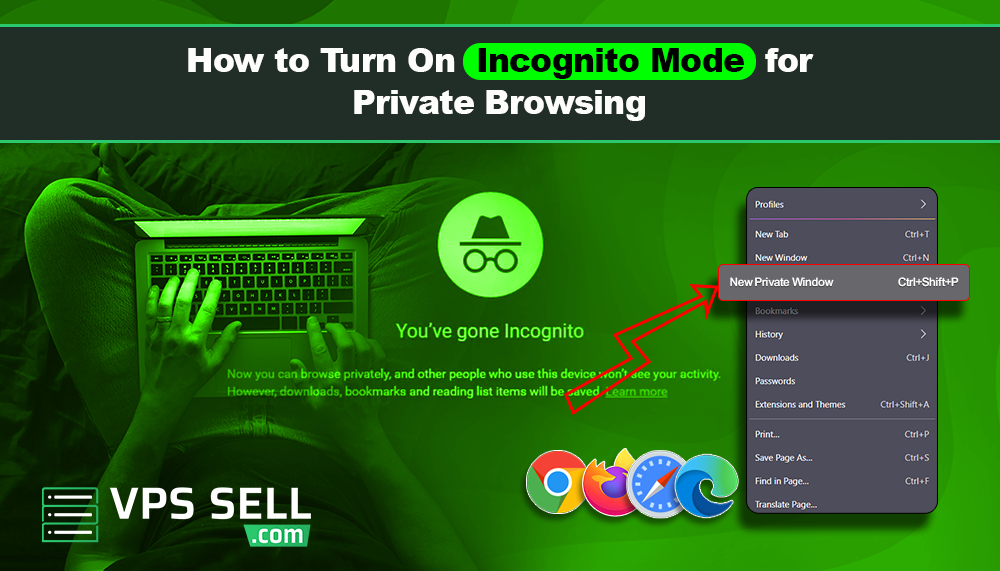
How to Turn On Incognito Mode for Private Browsing
When you browse the internet, your browser usually saves information like browsing history, cookies, and login details. Sometimes, you may want to browse privately without saving this information. This is where Incognito Mode helps.
Incognito Mode is a private browsing feature available in most web browsers. It allows you to browse websites without saving your browsing history on your device. In this article, we will explain what Incognito Mode is, why people use it, and how to turn it on in different browsers.
What Is Incognito Mode?
Incognito Mode is a private browsing option that helps keep your browsing activity from being stored on your computer or mobile device.
When you use Incognito Mode:
- Browsing history is not saved
- Cookies are deleted after closing the window
- Search history is not stored locally
- Login sessions are removed after closing
However, Incognito Mode does not make you completely anonymous online. Your internet provider, workplace, school, or websites you visit may still see your activity.
Why People Use Incognito Mode
Many people use private browsing for different reasons.
Using Shared Computers
If you are using a public or shared computer, Incognito Mode helps prevent others from seeing your browsing history or login information.
Logging Into Multiple Accounts
You can use Incognito Mode to log into a second email or social media account without logging out from your main account.
Avoiding Saved Cookies
Sometimes websites save cookies that can affect browsing. Incognito Mode starts a fresh session every time.
Private Shopping or Research
Some users prefer private browsing when checking prices, gifts, or personal information.
How to Turn On Incognito Mode in Google Chrome
Google Chrome calls private browsing “Incognito Mode.”
- On Windows or Mac
- Open Google Chrome
- Click the three dots in the top right corner
- Select “New Incognito Window”
You can also use the keyboard shortcut:
- Windows: Ctrl + Shift + N
- Mac: Command + Shift + N
A dark window with the Incognito icon will appear.
How to Turn On Private Browsing in Mozilla Firefox
Firefox calls this feature “Private Browsing.”
Steps:
- Open Firefox
- Click the menu button in the top corner
- Select “New Private Window”
Shortcut keys:
- Windows: Ctrl + Shift + P
- Mac: Command + Shift + P
How to Turn On InPrivate Browsing in Microsoft Edge
Microsoft Edge uses the name “InPrivate Browsing.”
Steps:
- Open Microsoft Edge
- Click the three dots menu
- Choose “New InPrivate Window”
Shortcut:
- Ctrl + Shift + N
How to Turn On Private Browsing in Safari
Safari is the default browser for Apple devices.
On Mac:
- Open Safari
- Click “File”
- Select “New Private Window”
On iPhone or iPad:
- Open Safari
- Tap the tabs button
- Tap “Private”
- Tap the plus icon to open a private tab
How to Turn On Incognito Mode on Android Phones
Most Android browsers support Incognito Mode.
Google Chrome on Android :
- Open Chrome
- Tap the three dots
- Select “New Incognito Tab”
Firefox on Android :
- Open Firefox
- Tap the menu
- Select “New Private Tab”
How to Turn On Private Browsing on iPhone
On iPhones, Safari and Chrome both support private browsing.
Safari :
- Open Safari
- Tap the tabs icon
- Select “Private”
- Open a new private tab
Chrome :
- Open Chrome
- Tap the three dots
- Select “New Incognito Tab”
Things to Remember About Incognito Mode
Incognito Mode is useful, but it does not provide full online privacy.
It does not:
- Hide your IP address
- Protect you from hackers
- Stop websites from tracking you completely
- Make you invisible online
For stronger privacy and security, people often use:
- Secure passwords
- VPN services
- Antivirus software
- Secure web hosting and SSL certificates for websites
Benefits of Private Browsing
Here are some simple benefits of using Incognito Mode:
- Better privacy on shared devices
- Cleaner browsing sessions
- Easier testing for websites
- Faster temporary browsing without saved cookies
- Multiple account login support
Final Thoughts
Incognito Mode is a simple and useful feature available in most modern web browsers. It helps you browse privately by not saving browsing history, cookies, or login sessions after you close the browser window.
Whether you use Google Chrome, Firefox, Edge, or Safari, turning on private browsing only takes a few seconds. If you care about online privacy, learning how to use Incognito Mode is a good first step toward safer internet browsing.